
How-To
Explore the optional Sample Planner
Try a small set of examples, then keep them as your own or remove them together.
Before you start
- Open Getting Started on iPhone, iPad or Mac.
- Examples can sync to your other devices when iCloud storage is active.
Steps
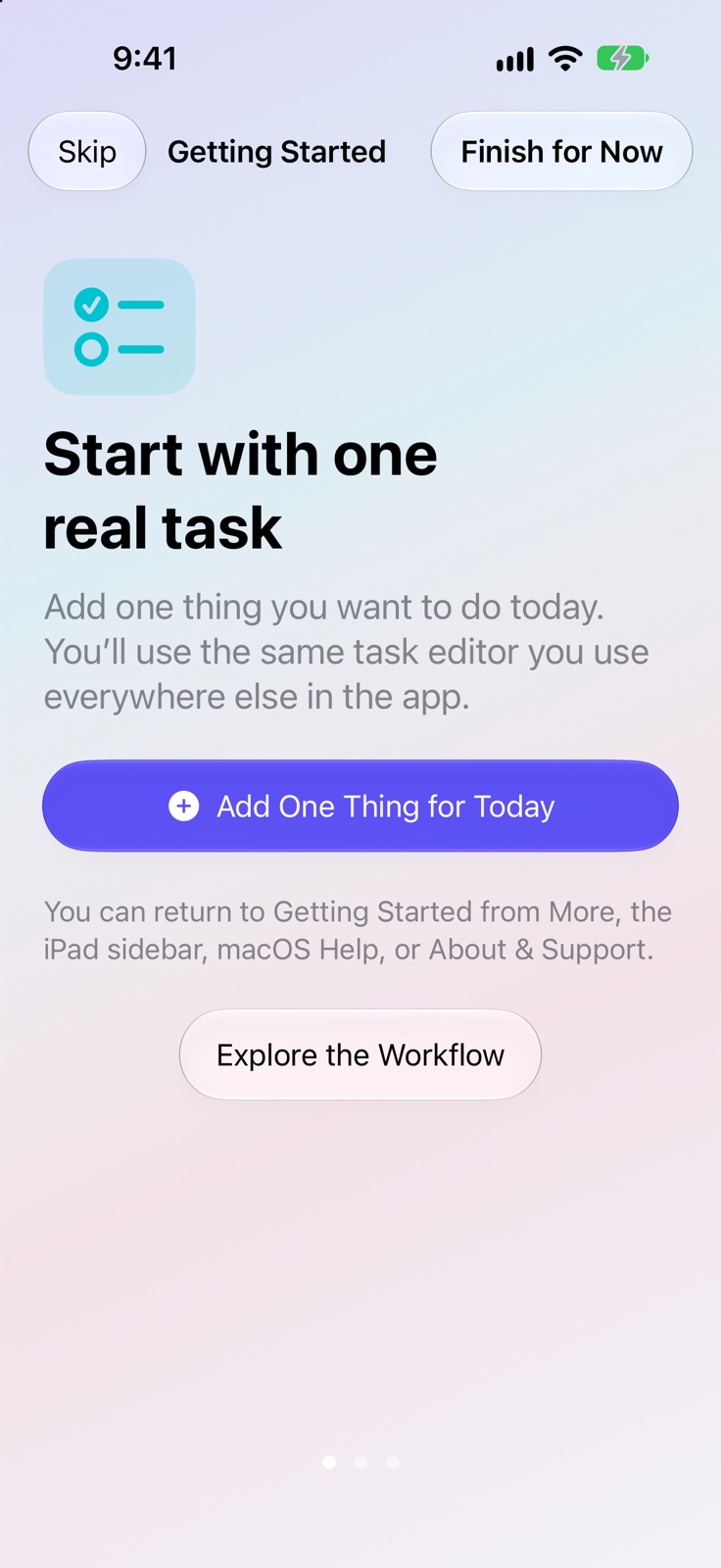
- Return to Getting Started from More on iPhone, the iPad sidebar, macOS Help, or About & Support. Choose Explore the Workflow to find the sample section.
- Find Optional Sample Planner and choose Add Sample Planner. The examples include short tasks, Daily Planner, Weekly Review, a Ritual.
- Explore the examples in their normal planner views. Adding the sample does not create reminders or request permissions.
- Return to Getting Started and choose Keep and Personalise to turn all examples into ordinary items you can adapt.
- Alternatively, choose Remove Examples to remove the recognised sample items and their linked history. After keeping them as ordinary items, manage them individually like your other planner content.
Confirm the setup is working
- The examples appear in the normal planner without reminders. Keeping them checks normal Free capacity; removing recognised examples removes their linked sample history.
Sample records stay outside Free limits until you choose Keep and Personalise. Keeping them checks your available task, Ritual and goal capacity. You can remove the examples or begin with one task instead.
Keep going
Your next useful step
Continue with a related guide or explore how the feature fits your plan.