
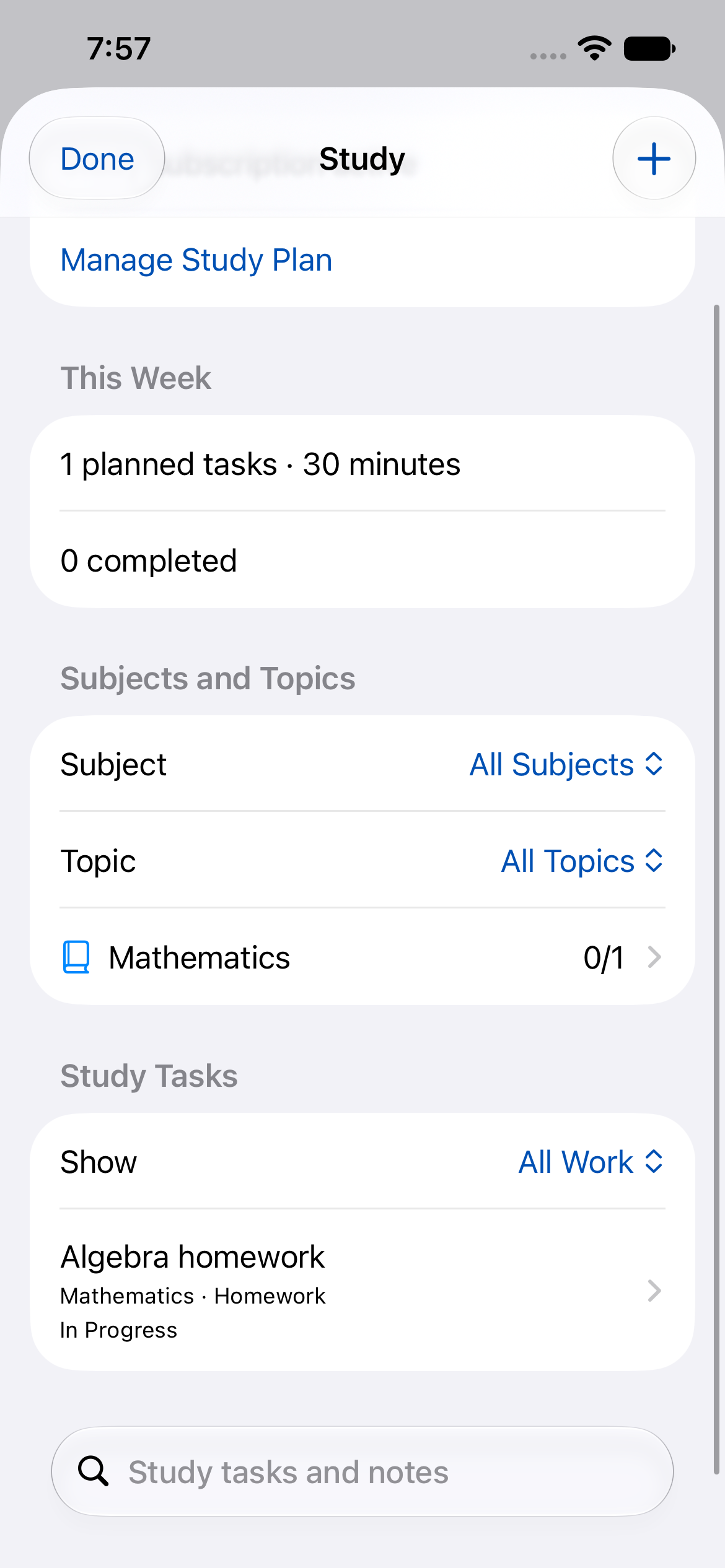
A weekly study reset
- Review deadlines across all subjects.
- Choose the next concrete step for each priority assignment.
- Place a realistic amount of study around classes and other commitments.
- Adjust work dates while keeping submission deadlines visible.
- Record submission and use feedback to choose follow-up revision.
Start with subjects and the work you already know about
Create a subject for each course and use topics where they help you find related work. Add the homework, assignments, exams and revision you know about before filling every free hour. Begin with the coming week; you can add more detail as it becomes useful.
Study is available on iPhone, iPad, Mac and Apple Watch. Creating subjects, topics and new coursework requires the separate Study subscription; Premium is not required. The setup how-to below walks through the controls.
Keep the work date separate from the deadline
A deadline tells you when the work is due. A planned work date tells you when you intend to make progress. Set both for an assignment so you can move a session without accidentally moving the deadline.
For example, a Biology report might be due on Friday, with research planned for Monday, an outline on Tuesday and a final check on Thursday. Study deadlines are date-only. Keep any exact submission time from your course instructions in the notes and set an appropriate reminder separately.
Break large assignments into actions you can start
Use Add Assignment Step for an outcome such as ‘Choose three sources’ or ‘Draft the introduction’. Use Schedule Study Session to reserve a period of work. Give each session a realistic duration instead of treating the whole assignment as one afternoon’s task.
Completing a step or session does not complete its parent assignment. Keep the parent as your record of the work to hand in, and use its steps to make the next action clear. Study coursework is one-off work; create separate dated sessions for repeated revision.
Fit the plan around the week you actually have
Review classes, work, travel and other commitments before choosing study slots. Use Study’s This Week summary to compare planned tasks and minutes with the time you have available. Those minutes describe your plan, not time already tracked or proof of learning.
Keep some space for work that takes longer than expected. Coursework appears in Study and on its planned date in the daily planner as the same task, so you do not need to create a second copy. Check the day’s plan before adding another session.
Adjust early when a session slips
Use the Today, upcoming-deadline and overdue filters to decide what needs attention. Move the planned work date when necessary, then check the unchanged deadline. If the remaining work no longer fits, reduce the next step or revisit your priorities rather than putting everything on tomorrow.
For example, if Monday’s research runs into Tuesday, move the outline session and check whether Thursday still leaves enough time for review. The app helps you see and organise the work; you decide whether to change scope or discuss the deadline with your teacher or tutor.
Close the loop with submission, results and revision
After handing in an assignment, choose Mark Submitted on the parent task. It can then await a result without remaining overdue unfinished work. Record a mark, grade or pass/fail and any feedback when available; a result does not change completion by itself.
Use Plan Follow-up Study to turn an area to review into a revision draft. Check its title, date, duration and notes before saving. Recording feedback alone does not add work to your calendar. At the next weekly reset, consider that revision alongside upcoming deadlines.
Existing coursework remains readable, editable and completable after Study access expires, including recording results. Creating a new revision task requires active Study access.