
How-To
Use Daily Planner
Place open activities, appointments, and tasks from tags associated with Work onto a concrete timeline for the selected day.
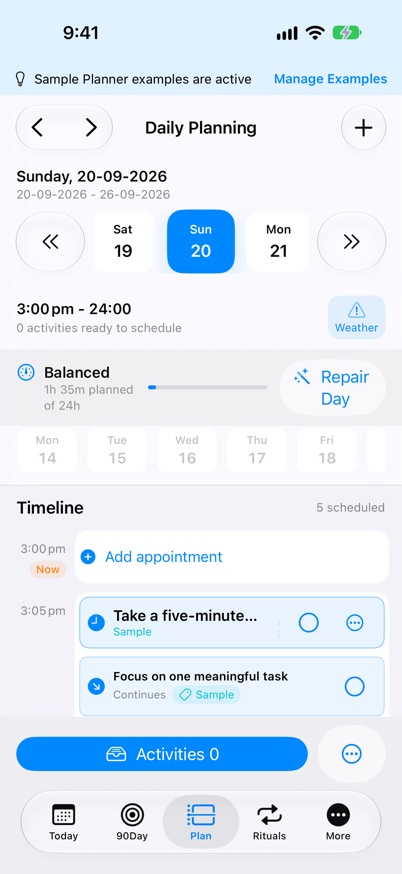
Before you start
- On iPhone, tap Plan. On iPad or Mac, select Daily Planner in the sidebar.
- Use Settings if you want to change the visible day range or Work Day hours first.
Place your first task
- Build 48: Populate My Day offers only tags with available open, unscheduled tasks for the selected date. Include older movable tasks broadens the choices. Optional client/project selections narrow the selected tags; empty groups are omitted. Close leaves the plan unchanged.
- Next Task follows the displayed schedule. Start records work time; Pause ends the session. Review opens task details. Done retains completion confirmation, while chunked tasks keep block controls. Later requests one reminder ten minutes later without moving the task.
- Choose the day from the Daily Planner header. Next-build preview: Mac and iPad show today plus the next seven days, refreshing at midnight or foreground entry. iPhone uses its compact date picker.
- Review the timeline range, separate Activities and unscheduled tasks in the Task Queue.
- Drag a task from the Task Queue, an Activity, a meal chip or an existing scheduled card to a suitable timeline slot.
- Review the selected date, start time and duration on the timeline. The Task Queue contains tasks; Activities have their own allowance.
Move or unschedule work
To change a saved task's start date, drop it onto a visible future date or choose a date from the task menu.
Use the Task Queue date label to distinguish Today from tasks scheduled on another date.
A completed task can return to the Task Queue with its completion and selected date retained, while its time and time-dependent reminder are cleared.
Use Not Today for planning items you do not want placed today, and check the remaining queue before leaving the day.
Adjust duration and reuse time
Adjust scheduled task duration in five-minute increments. Tasks shorter than 30 minutes use a compact timeline block, while longer tasks keep the larger standard presentation.
If a task uses part of a half-hour, the remaining minutes stay available for reuse.
For an Activity, changing End Time updates its duration with a five-minute minimum. Review the timeline after editing start or end.
Complete scheduled work
When a task spans several blocks, complete only the selected block or complete the whole task when prompted.
Plan appointments and calendar commitments
Tap an empty future slot to add an appointment, then set its exact start time, duration, recurrence and optional one-way or return travel. Appointments stay on the timeline and are hidden from active task lists by default.
Use Connect Calendars to choose read-only commitments, Appointments & Travel for journey time, and Populate, Plan & Review Day for reviewed scheduling and your end-of-day review.
Use Populate My Day to fit Work-associated tasks into configured work hours and personal work outside those hours, with your chosen breaks.
Connect selected calendars to see read-only commitments and clashes. Premium Optimise Day reviews how flexible work fits around them; review changes before applying them. Fixed commitments, manually positioned work and Rituals remain protected.
Adjust the planning display
Collapse or expand Activities; the choice is remembered on this device.
Confirm the setup is working
- Task Queue and Activities remain separate, and each placed item uses the intended date and duration.
If a slot cannot accept a drop, check whether it is in the past, outside the configured Daily Planner range, or already occupied by scheduled work.
Keep going
Your next useful step
Continue with a related guide or explore how the feature fits your plan.