
How-To
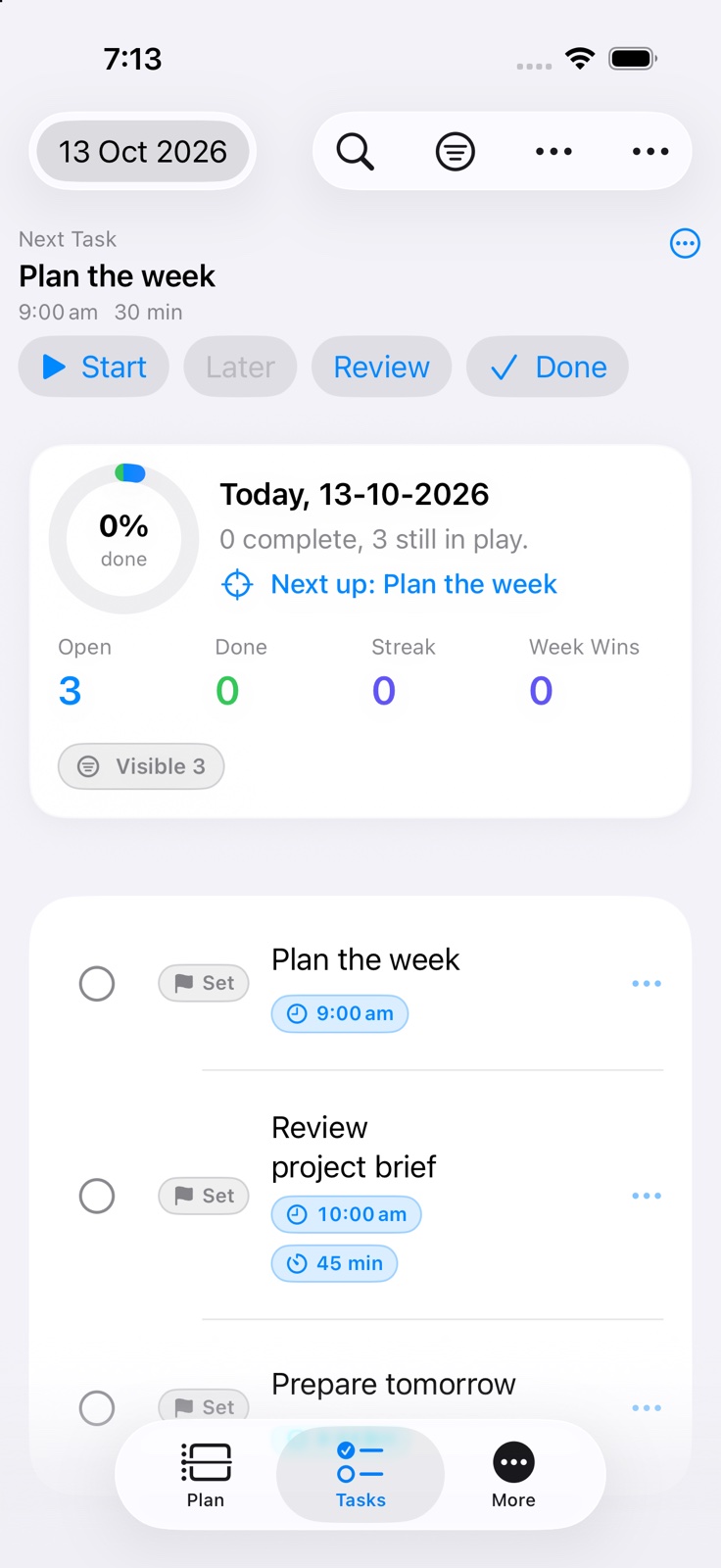
Plan a day
Build a practical plan for the selected day without losing unfinished work.
Before you start
- Open the day you want to plan.
- Confirm iCloud is available if you expect the plan to sync across devices.
Steps
- Open Today for the current day, or select another date in the planner to plan ahead. Add a clear task title.
- For an ordinary repeating task, choose Daily, Weekly, Fortnightly, Monthly, Every Two Months, Quarterly, Half-yearly or Yearly instead of creating duplicate tasks.
- Keep the scheduled date and time, reminder date and completion due date distinct: they describe when you plan to work, when you want a prompt and when completion is due.
- Assign a priority letter and rank to the work that should surface first.
- Use Daily Planner when you want to place open activities onto a visible timeline.
- Add times and durations only where the task truly has a schedule, then enable task-time reminders only when needed.
- Use tags such as Work, Home, or Health to keep the day balanced.
- Complete, reopen, or move tasks as the day changes. Check filters and sort order if a saved task is not visible.
- Use All Completed for retained completed and missed history. Retention settings affect what remains available; this is separate from the selected-week review.
- Swipe between days or use the date selector to plan ahead. Today returns to the actual current date; the app updates Today when the day changes.
Confirm the setup is working
- The saved task appears on its planned date; returning to Today restores the current day.
If a task did not move as expected, check automatic carryover timing, tag weekday or weekend rules, and away periods.
Keep going
Your next useful step
Continue with a related guide or explore how the feature fits your plan.