
How-To
Create a ritual
Set up a repeated routine that schedules dated tasks into the planner.
Before you start
- Choose a cadence from daily through yearly, including fortnightly or seasonal routines.
- Free plans can save up to three rituals.
Steps
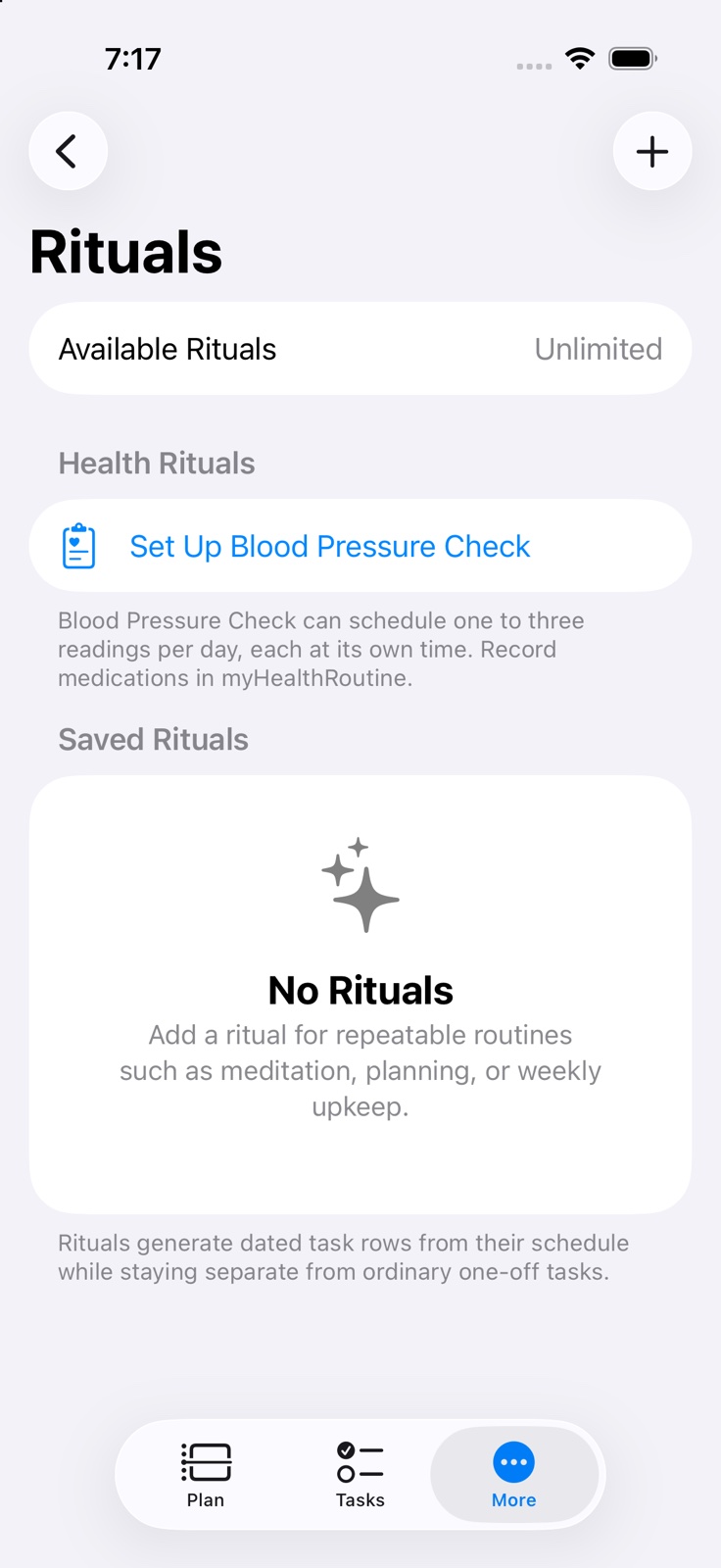
- On iPhone, tap Rituals. On iPad or Mac, select Rituals in the sidebar.
- Create a Ritual with a clear title and choose Daily, Weekly, Fortnightly, Monthly, Every Two Months, Quarterly, Half-yearly or Yearly, according to the routine.
- Choose weekdays or month days where relevant.
- Choose a tag, then optional time, duration, travel, reminder and priority. Settings can allow untagged Rituals.
- Check Starts before saving a longer-period routine. Fortnightly routines use selected weekdays in alternating weeks; month-day Rituals use the last valid day when a shorter month needs it. Save the Ritual.
- Review generated tasks in the normal day views and Smart Lists.
Set up blood-pressure readings
For a BP Ritual, choose one, two or three separately timed readings if needed.
Use the Health Rituals guide for optional companion and Apple Health connections.
Complete occurrences
Complete a generated occurrence in the planner. Weekly and fortnightly routines advance their next selected weekday; other routines use the active planning horizon. Past open occurrences become Missed on their original date instead of carrying forward.
Edit the ongoing routine
Edit the saved Ritual to change the ongoing pattern. Review today and future open tasks after saving; older completed and Missed records stay in history. Away periods skip future generation rather than cancelling external events.
Delete a Ritual
To remove a saved Ritual, use Delete Ritual at the bottom of its editor and confirm. Older, completed and Missed history remain.
Confirm the setup is working
- Generated occurrences follow the chosen start date, cadence and time.
If future ritual tasks are not appearing, check the active planning horizon and any away periods in Calendar Rules.
Keep going
Your next useful step
Continue with a related guide or explore how the feature fits your plan.