
How-To
Find a task across dates
Locate current or retained completed work without changing it.
Before you start
- Know part of the task title, details, URL or tag.
Steps
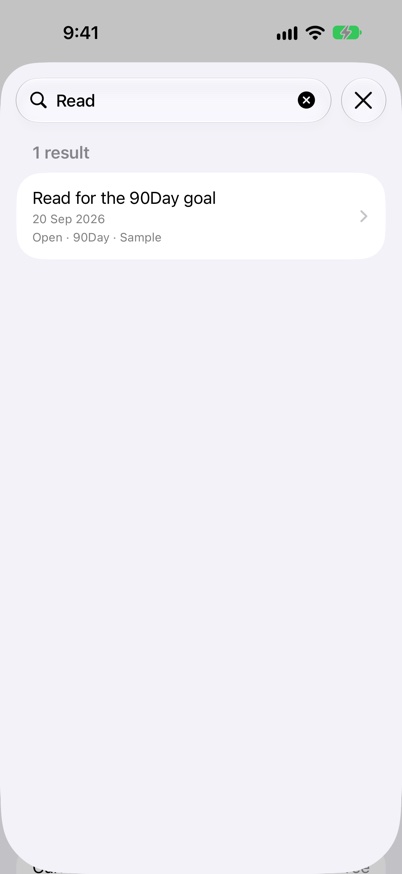
- Open Search Tasks from More on iPhone or the toolbar on iPad and Mac; Command-F also works with a keyboard.
- Enter a useful word or tag and review matching tasks across dates.
- Open a result to read its details, or return a live task to its original day.
- Use All Completed when you want to browse retained completion history instead.
- On Apple Watch with Premium, open Search Tasks from the dashboard. Search runs across dates while that screen is open.
- Check title, details, URL and tag wording if a search is too narrow. Retained completed records and Daily Quest tasks can appear; a result opens its original context rather than creating a copy.
Confirm the setup is working
- Opening a result opens the existing task without changing its date or completion.
Search can only show data still retained in your planner. A repeating series appears once, rather than as a result for every future occurrence.
Keep going
Your next useful step
Continue with a related guide or explore how the feature fits your plan.