
How-To
Turn a goal into a 30-, 60- or 90-day plan
Review a sequence of concrete actions before adding it to your planner.
Before you start
- Choose an outcome you want to work towards.
- Free plans can keep one active 90Day goal.
Steps
- Open 90Day Planner, add a goal and choose 30, 60 or 90 days.
- Use More Options for a custom 1–365 day timeframe and schedule. Choose a quantity-based measurement or routine/completion-based progress, and review planning preferences.
- Describe your starting point, finished result, resources, constraints and available session time. Editable templates such as reading a book, painting a room or learning a song can provide a starting point.
- For a book goal, enter title, author and pages manually, or explicitly choose Look Up Book and correct the result before using it.
- On a supported device, review Apple Intelligence suggestions; the standard planner remains available when assistance is off or unavailable.
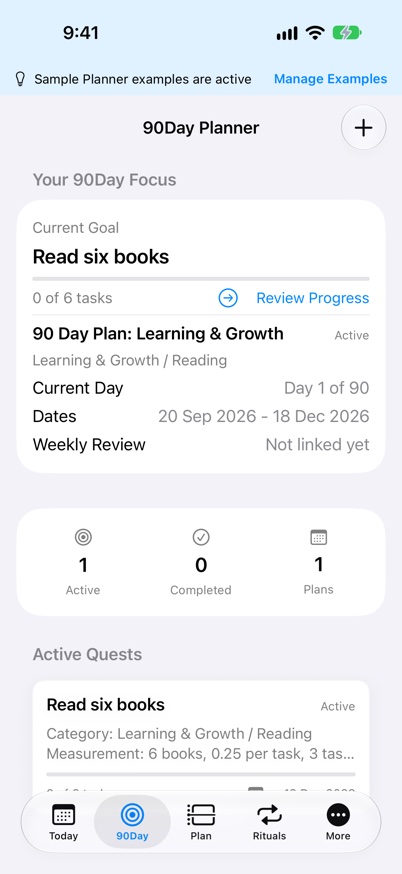
- Edit the proposed tasks and session lengths, then accept the plan. Track each task in your daily planner and overall progress in 90Day.
If planning fails
If creating, saving or generating a plan fails, Report to Developer lets you review, edit, copy, share or open an email draft. Nothing sends automatically.
After accepting the plan
Use Goal Progress & Reading to check sessions against the outcome and review your reading plan. Open the existing goal before making changes so you do not create a second plan.
Confirm the setup is working
- The reviewed plan appears under the selected goal, and its scheduled tasks appear on the intended dates.
Apple Intelligence availability is checked on each device. A plan you have already accepted remains usable on your other devices without Apple Intelligence. Cancelling an error report keeps the goal draft.
Keep going
Your next useful step
Continue with a related guide or explore how the feature fits your plan.