
How-To
Organise tasks by client and project
Group work without duplicating tasks.
Before you start
- Open More on iPhone or the iPad or Mac toolbar.
Steps
- In Settings > Projects & Clients, enable Clients & Projects. Switch it off when you want a simpler planner; saved assignments stay intact. Watch has its own Display setting.
- Choose Add Client or Add Project to enter details, or open Edit Details on an existing record. Save applies the draft; Cancel leaves existing information unchanged.
- In Daily Planner, expand Client Work, then a client and its indented projects to find tasks. Collapse groups you are not using.
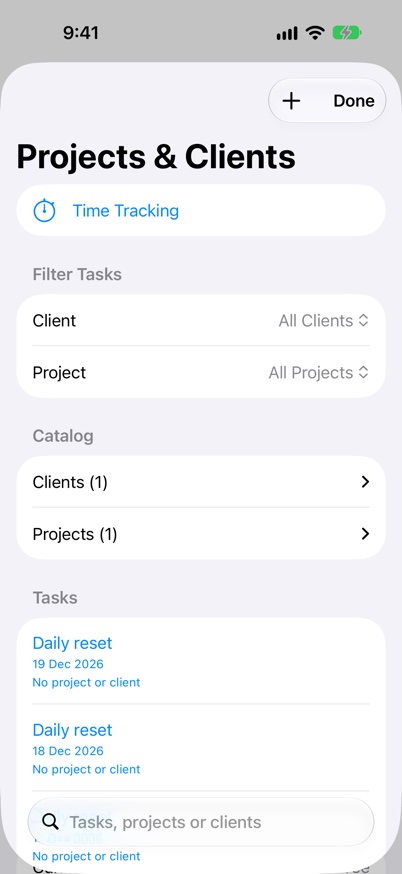
- Open Projects & Clients and add or select a client and project.
- Assign a task through the catalogue or its task editor.
- Use the client and project filters to review assigned tasks across dates.
- Rename catalogue labels when needed; existing assignments remain connected.
- Open Time Tracking to review recorded sessions for that work.
- Check assignment after moving a task to another day; it remains the same record. Daily Quest tasks also appear in all-date catalogue filters.
- On Apple Watch with Premium, open Projects & Clients and use the native choices to browse assigned work.
Confirm the setup is working
- Renaming a catalogue label keeps its existing assignments.
- A task appears once under its current assignment; earlier billing labels remain in Time Tracking.
Earlier time entries keep their original client and project labels when you reassign the task.
Keep going
Your next useful step
Continue with a related guide or explore how the feature fits your plan.